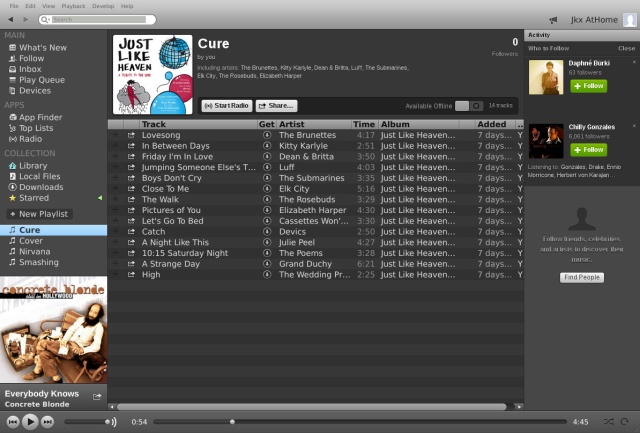
Howto : Change Spotify font size (for 42″ TV display)

I use Spotify for my every day listening, and I decided to use it on a big screen : My 42″ LCD TV. Simply launch Spotify in a one-line .xinitrc script. It fit perfectly in full screen mode without any tweak. But of course nothing is perfect,  we have to live with a very small font on a such big screen. Spotify use a skin for the client app, so changing QT4 fonts doesn’t change anything, we have to fix the skin directly.

So, first step : search the file resources.zip (in /opt/spotify/spotify-client/Data/ on Debian). Extract the file skin.xml. In this file, search for line like this.

<font ci="FriendsListFont" color="#dddddd" shadow="#333333" size="11" />

So change all font sizes, save the file, re-pack the ressources file .. and Voila. You can fix this manually (or with a special XML editor), but the file contain 245 font definitions. I decided to fix with a Python script.

import xml.etree.ElementTree as xml

tree = xml.parse("./skin.xml")
root = tree.getroot()

for f in root.findall('font'):
	taille = f.get('size')
	if taille:
		taille = int(taille) + 4
		f.set('size',str(taille))


file = open("new_skin.xml", 'w')

xml.ElementTree(root).write(file)

Let’s try this new skin :  

This should be a easier for the big screen :)

/Enjoy music

WordPress update

Just installed the new wordpress 3.5 version. Everything seems to be fine right now. Feel free to post a comment if you see something wrong. Switching to a new theme is a pure nightmare, I hate this stuff (editing PHP file, testing, adding google adsense …) grr

That’s enough !

Change the default sound card in Spotify : Alsa + Monkey Patching

I’m a long time Spotify user right now. I decided to opt for a unlimited account due to the price. The main issue : Spotify for Linux is a closed source software, doesn’t allow the user to change the sound card and I want to use my almost finished USB DAC.

In fact, if you use Jackd (and perhaps Pulse) you can change the sound card used by Spotify, but this is overkill for my needs (mainly cause, I use Spotify on a litte old netbook and Jackd is a nightmare to configure)

After some strace dump, Alsa (libasound2) source reading, I decided to fix it by myself. Let’s go for some Monkey Patching. Monkey patching on closed source binary isn’t that easy, the hard step : find the right function to hack. Here the Alsa tutorial come to rescue (ldd of course too). So we need to modify the snd_pcm_open call.

Let’s give it a try : First we need to dynamically re-route this call to a wrapper. The easier way to do this, is to build a special library and to force Spotify to use the wrapper with an LD_PRELOAD hack. (see code below). In fact, Spotify call the snd_pcm_open with name=”default” which is the default sound card, so we can change this to “usb” for example, and fix the .asoundrc to point “usb” sound card to the right hardware card.

That’s enough, let’s code :

#define _GNU_SOURCE

#include <dlfcn.h>
#include <stdio.h>
#include <alsa/asoundlib.h>

static int (*wrap_snd_pcm_open)(snd_pcm_t **pcm, const char *name, snd_pcm_stream_t stream, int mode) = NULL;

void * wrap(void * func,char *name)
{
    char *msg;
    if (func == NULL) {
        func = dlsym(RTLD_NEXT, name);
        fprintf(stderr, "** wrapping %s =>  %p\n", name,func);
        if ((msg = dlerror()) != NULL) {
            fprintf(stderr, "** %s: dlopen failed : %s\n", name,msg);
            exit(1);
        } else {
            fprintf(stderr, "** %s: wrapping done\n",name);
        }
    }
    return func;
}

int snd_pcm_open(snd_pcm_t **pcm, const char *name, snd_pcm_stream_t stream, int mode)
{
    int temp;

    sprintf(name,"usb");

    wrap_snd_pcm_open = wrap(wrap_snd_pcm_open,"snd_pcm_open");
    temp = wrap_snd_pcm_open(pcm,name,stream,mode);
    fprintf(stderr, "** Calling snd_pcm_open for path:[%s] => fd:[%d]\n",name,temp);
    fflush(stderr);
    return temp;

}

As you can see in the code, I use a generic wrapper function because during my code session, I used this function to re-route some other functions. To build the library :

gcc -g -fPIC -shared -Wl,-soname,preload.so -ldl -o preload.so  main.c

Load the lib, with export LD_PRELOAD=./preload.so before running Spotify. Spotify (and all other software using Alsa) will use “usb” as default sound card.

Note: C reader will note that name is a const char pointer, and so we can’t change it, but even if gcc raise a big warning, the code do trick fine.

Enjoy good quality sound even w/ closed source

Cheap DIY USB Tube DAC

Due to lot of homework, I haven’t found a lot of time to have fun electronic for some times. I decided to change this by building an cheap USB DAC with tube output.

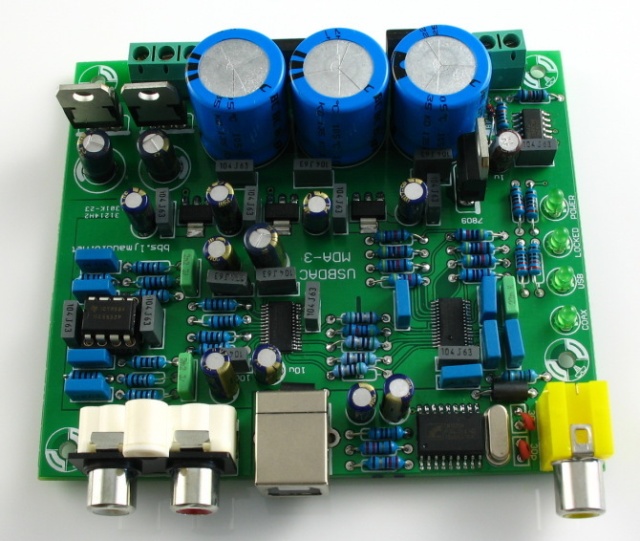
There is a bunch of USB DAC on the market right now, but most of them aren’t really top quality. As I don’t want to loose some time to build the USB part, I decided to buy a USB DAC Kit. After a little search on Ebay I found this one :

This kit sports an CS8416+CS4398 combot plus an NE5532 output buffer, but as I want it to be a little audiophile, I will drop the NE5532 in favor of an simple tube preamp.

For the tube part, I think I will go for an 12AX7 or something similar. I really think 6SN7 are better, but this tube are overkill for an preamp I think.

Update, some links for the tube output :

/Enjoy tube sound

Automatic FTP backup for servers

Today I need to find a way to do some backup on an FTP server. Of course there is a lot of way to do that, but I need something automatic that does some full (monthly) and incremental (daily) backup. I decided to use duplicity because it’s a really simple and effective software. The main issue, is that duplicity command line is a bit hard to remember for me. So why not simply write a simple python script that does the job for me.

So here, we are :

#!/usr/bin/python 
# Edit DATA and DEST
DATA='/var/www'
DEST='ftp://username:password@ftp.server/backup'

import os
import sys

def backup(b_type='incr'):
    dup_cmd ='nice -n 19 duplicity %s  --volsize 512 --no-encryption --asynchronous-upload ' % (b_type,)
    temp = '%s %s %s' % (dup_cmd,DATA,DEST)
    os.system(temp)

def info():
    dup_cmd='duplicity collection-status  %s' % (DEST)
    os.system(dup_cmd)

def list_files():
    dup_cmd='duplicity list-current-files  %s' % (DEST)
    os.system(dup_cmd)

def clean():
    dup_cmd='duplicity remove-all-but-n-full 1 --force %s' % (DEST)
    os.system(dup_cmd)

def usage():
    print "%s [-incr|-full|-list|-info|-clean]" % sys.argv[0]

if __name__=='__main__':
    if len(sys.argv) > 1:
        if sys.argv[1] == '-incr':
            backup('inc')
        elif sys.argv[1] == '-full':
            backup('full')
        elif sys.argv[1] == '-info':
            info()
        elif sys.argv[1] == '-list':
            list_files()
        elif sys.argv[1] == '-clean':
            clean()
        else:
            usage()
    else:
        usage()

Please note that I disabled the PGP encryption for this backup. Mainly because, I don’t want to deal w/ lost keys when I will need to restore the backup. But this can be done easily. I will post a complete guide if someone ask.

The next step call the script in cron.d for example with something like this : 30  3   *  *  *

Feel happy no more stress with backup ;)

Connect NGW100 Linux (AVR32) to Arduino with I2C

For a Linux embedded training, I need to find something fun to plug on an AVR32 board. The board used for the training is a NGW100 board. I decided to try to use the I2C bus. I have several I2C stuff on the desk, but nothing really fun and I don’t want to solder a lot of stuff, and spend a lot of time on this. I decided to use a Arduino board as a I2C slave device and plug this to the NGW100 board.

First step: Simply use the Arduino IDE and the Wire lib. I use an Seeeduino because I need an Arduino that works at 3.3v level. Here the code :

#include <Wire.h>
void setup()
{
  Wire.begin(4);                // join i2c bus with address #4
  Wire.onReceive(receiveEvent); // register event
  Wire.onRequest(requestEvent); // register event
  Serial.begin(38400);           // start serial for output
  Serial.println("Boot Ok");
}

void loop()
{ delay(100); }

void receiveEvent(int howMany)
{
  char c = NULL;
  while(Wire.available()) // loop through all
  {
    c = Wire.receive(); // receive byte as a character
    Serial.print(c);         // print the character
  }
  Serial.println();
  Serial.println("===");
}

void requestEvent()
{
  Serial.println("read");
  Wire.send("Hello world from Arduino");
}

To test the Arduino I used a Bus Pirate, this is quite simple and fun, here a little snipset of my initial test with the BP (note the string are different). The I2C slave is at the 0×4 address (check the setup()).

Searching I2C address space. Found devices at:
0x08(0x04 W) 0x09(0x04 R) 

Read content from the device, 'ABCD'
I2C>[0x09 rrrrrr]
I2C START BIT
WRITE: 0x09 ACK
READ: 0x41
READ:  ACK 0x42
READ:  ACK 0x43
READ:  ACK 0x44
READ:  ACK 0xFF
READ:  ACK 0xFF
NACK
I2C STOP BIT
I2C>

send content to the device 'ABC'
I2C>[0x08 0x41 0x42 0x43]
I2C START BIT
WRITE: 0x08 ACK
WRITE: 0x41 ACK
WRITE: 0x42 ACK
WRITE: 0x43 ACK
I2C STOP BIT

Second step: Plug the Arduino to the NGW100. I used the wrapping technique. Simply connect SDA, SCL, and GND. (NGW100 pinouts : SDA=>9, SCL=>10, GND=>2)

On Linux, load the I2C-GPIO kernel module. On OpenWRT (used on the NGW100), simply load the kmod-i2c-gpio package.

Final step: If everything is Ok, we can now test the communication. I used a small piece of C code to deal with I2C on Linux.

#include <string.h>
#include <stdio.h>
#include <stdlib.h>
#include <linux/i2c-dev.h>
#include <sys/ioctl.h>
#include <fcntl.h>

void i2c_run(void) {
    int file;
    char filename[40];
    int addr = 0x4;
    char buf[32] = {0};
    int i;

    sprintf(filename,"/dev/i2c-0");
    if ((file = open(filename,O_RDWR)) < 0) {
        printf("Failed to open the bus.");
        exit(1);
    }

    if (ioctl(file,I2C_SLAVE,addr) < 0) {
        printf("Failed to acquire bus access and/or talk to slave.\n");
        exit(1);
    }

    i = 24;
    // read I2C
    if (read(file,buf,i) != i) {
      printf("Failed to read from the i2c bus.\n");
    } else {
      printf("Read %d bytes from I2C: [%s]\n",i,buf);
    }

    sprintf(buf,"IC2 from Linux to Arduino");
    i = strlen(buf);
    if (write(file,buf,i) != i) {
        printf("Failed to write to the i2c bus.\n");
    } else {
      printf("Sent %d bytes to I2C: [%s]\n",i,buf);
    }
}

int main()
{
  i2c_run();
  return 0;
}

As you can see this code is a bit rude, but works really well : Read the I2C bus, and send a sample string, a proof ? :)

Of course, I used string values but in real life a small protocol shoud be used. Another important thing: I used a NGW100 but you can use the same idea on all Linux embedded board like the Fonera, or anything else.

Update: Of course you can use the i2c-tools on Linux to detect your own device. To do that : Grab the i2c-tools source, and cross compile it for the AVR32. (You only have to change the CC path in the Makefile).

/Enjoy small Linux

Calling GDB (Gnu debugger) within your code.

I spent a lot of time finding the right way to do this, so here is a quick note. For work, I need to debug a small piece of code I wrote. But the main software (closed source) load my library (via dlopen) and run it in a single thread.

That’s fine, but I’m unable to debug this part of the code because I’m unable to place a breakpoint. So I want to place a “break” in my code that’s return back to GDB. (exactly like you can launch the debugger within Python w/ a simple pdb.set_trace().

This is quite easy to do, and really useful but not really popular. The main trick is to call the interrupt number 3. This will rise a SIGTRAP signal in the Linux kernel that GDB can intercept .. so in your code simply add a macro :

#define GDB()  asm("int $0x3")
int main()
{
 int a = 12;
 GDB();
 printf("A ==> %u \n",a);
 return 0;   
}


Call the GDB(); macro in your code, compile it with gcc -g, simply run your program in GDB, and wait for the macro to be called :)

/Enjoy gdb

Mbed Ethernet connection

I just received my mbed module. This little ARM device is pretty cool, and the associated tools works quite nice. Of course they cost a lot of money, I received mine for free for the mbed contest. Really kool no ? ;)

After the classic blink test, I decided to go for a network test. But I don’t have any magnetic Ethernet module right now (In fact, I should have one, but I’m unable to find it). So let’s go for a magnetic less ! The doc on the mbed dedicated page say that should be fine. I decided to pull the RJ45 socket from an old broken WRT54.

The main issue is to figure out how to solder this RJ45 on a veroboard. Here comes the fun part, I remembered that radio-amateur use a technique called “dead bug soldering”. Check this guidelines from the NASA for examples.

I decided to give it a try :

Just glue the RJ45 on the veroboard and use a common wrapping technique : Not so bad ;)

The next step is to flash a network example to test.

That’s really fun, the mbed works pretty well. I secretly hopes that somebody will come with a mbed like with opensource hardware and software.

Enjoy wired networks ;)

Really cheap USB to TTL on Atmega : 1.70$

One of the most common way to interface a microcontroler to a computer used to be serial port. But right now, serial port have been replaced with USB on most computers. A common way to fix this issue is to use a USB to TTL converter or a USB to RS232 converter + MAX232. That’s fine but :

  • USB to TTL PCB cost a bit of money : you can find some on Ebay around 7€ (shipped) and 15$ on Sparfun !!!  That’s about 2 or 5 times the cost of the microcontoler !
  • USB to RS232 cost 1.70$ (shipped) but need some extra level shifting and doesn’t really feet on a PCB (need a DB9 connector …)

In fact, USB to RS232 is a mass product, and the cost is really low. I decided to order a couple of this, just to look if I can use this stuff on a PCB. So I bought a 1.70$ USB to RS232 on Ebay.

I decided to rip the plastic off the DB9 and discovered a really tiny PCB. I removed the DB9, and decided to pass this little PCB to a scope session. How the hell do they manage to do a USB to RS232 with only a couple of external components ? They is no big capacitor for level shifter  (remember  RS232 is a +12/-12v ) ? The answer is simple, they don’t !!

This device isn’t RS232 compliant at all, the signals on the DB9 are TTL compliant, but not RS232. The ouput is between 0/5V and the input can handle -12/+12V but works great with a 0/5V too. I simply removed used pads on one side and added a couple on pins.

Please note that RX pin is missing on this pix but needed of course. The next step : How can I use this with an AVR Atmega (I used a Atmega8 but any will do the trick). Serial connection on a micro is TTL like this board, but the TTL signal is just inverted. A “1″ on the RS232 side is a -12V and +5V on a TTL, and a 0 on the RS232 side is a + 12V and a 0v on the TTL. You can find all the information here.

In fact MAX232 do both level shitting and inverting, but as I’m to lazy to wire a MAX232 (and will destroy the cheap aspect of this hack), I decided to handle this by software. This mean, I won’t be able to use the Atmega serial builtin port but need to write some additional code, to do the RS232 encoding/decoding by hand. Let’s give it a try :

I simply put this on a verroboard, connect VCC to USB Vcc, GND, RX and TX  to random pins on the AVR and let’s go to RS232 software serial. This can be done easily in fact, and I managed to handle 19200bauds with the internal 8Mhz clock of the Atmega. Above you will find the popular uart_putc() and uart_getc() ..

 1 #define UART_TX	D,1
 2 #define UART_RX	D,2
 3 #define UART_DELAY	52 // 1/9600 = 104uS : 1/19200 = 52uS
 4
 5
 6 void uart_putc(char c)
 7 {
 8   uchar i;
 9   uchar temp;
10
11   // start
12   set_output(UART_TX);
13   _delay_us(UART_DELAY);
14   clr_output(UART_TX);
15
16   for(i=0;i<8;i++)
17   {
18     temp = c&1;
19     if (temp==0)
20       set_output(UART_TX);
21     else
22       clr_output(UART_TX);
23     _delay_us(UART_DELAY);
24
25      c = c >>1;
26   }
27
28   // stop
29   set_output(UART_TX);
30   _delay_us(UART_DELAY);
31   clr_output(UART_TX);
32
33   _delay_us(UART_DELAY);
34 }
35
36 uchar uart_getc()
37 {
38   uchar i;
39   uchar ib = 0;
40   uchar currentChar=0;
41
42   while (ib != 1)
43     ib = get_input(UART_RX);
44
45   _delay_us(UART_DELAY/2); // middle of the start bit
46   for(i=0;i<8;i++)
47     {
48       _delay_us(UART_DELAY);
49       ib = get_input(UART_RX);
50
51       if (ib ==0)
52 	currentChar |= 1<<i; // this is a 1
53     }
54   return currentChar;
55 }

Nothing more to say, this hack works really great, and I can now build a bunch of USB board without paying so much. The only drawback of this approach is that you can’t use an interrupt for the uart_getc() so you have deal with that in your code. Another approach would use a single transistor for the RX pin to make the RX compliant w/ the AVR serial builtin routine.

You can find the whole project C files + Makefile in a zip here. I think this little hack is really useful, so please send it to all to your DIYer friends, this can save them money, time …

// Enjoy cheap USB ? :)

Boosting IR remote video sender (Thomson VS360U)

In my home, I have a bad TV antenna, so we use only the cable receiver to watch TV. But I have two TV sets. I decided to buy a video sender a couple of months ago, but never managed to get it working nicely. I bought a Thomson VS360U video sender. This one is really cheap, 24 €, works on the 2.4Ghz for the audio/video and 433Mhz for remote.

At the first test, I discovered that the transceiver come with a couple of IR leds. I have to glue each IR led in front of each part of your equipment I want to drive. For me, the cable receiver, the DVD, the Dvico, and the AV amp .. I tried this, but that’s a mess, each led is soldered on a single string, and tend to move. Not really a nice experience. This is simple to crappy to be use.

I decided to mod it to be able to use a single IR led, with a better gain. The first step is to find the right place to place my mod. Just open the transceiver, locate the power supply (Vcc/Gnd) and the IR transistor. I was quite easy, the only trick is to solder the wire for the IR transistor just before the base resistor. Here is the result.

You can find a better pix, in the gallery. I used a scope to find the IR transistor, but this can be done without.

Let’s build a simple IR booster, that’s connect to this pins, and everything will be fine. I used an common BC547 but any common transistor will do the job.

The result :

As you can see, this is small. I placed this near my cable receiver and every is working nicely. I can now control every equipment (cable, DVD, Dvico) for my room without any lag, or IR lost signal.

I managed to fix this cheap video sender without to much effort, I’m happy. This kind of hack can be used in a couple video sender device. The hardest part is to find the IR transistor, the rest is simply the same.

Enjoy TV from bed ;)